In this guide you will learn to add the Downloader App that will allow you to sideload apps that are not avalible in the app store
#1 Install Downloader on Amazon Firestick
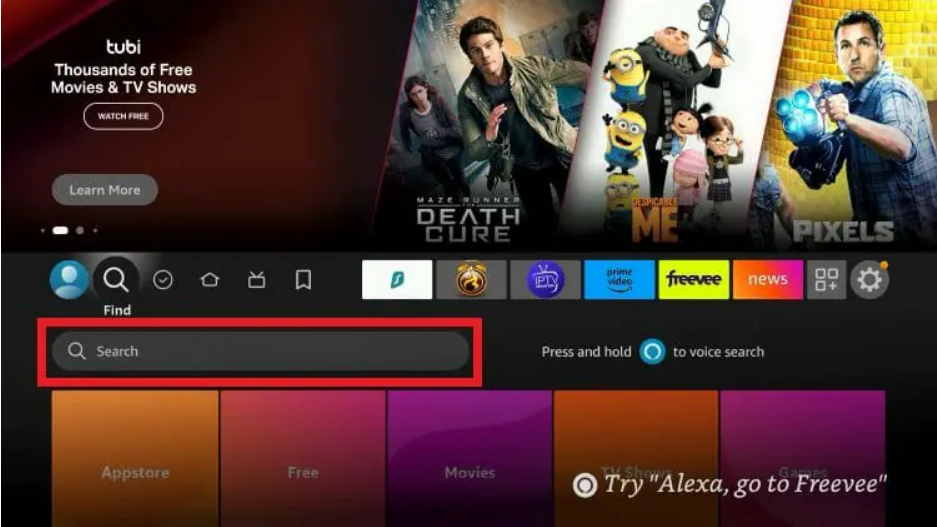
From the home screen of your device Find search button and click the Search box.
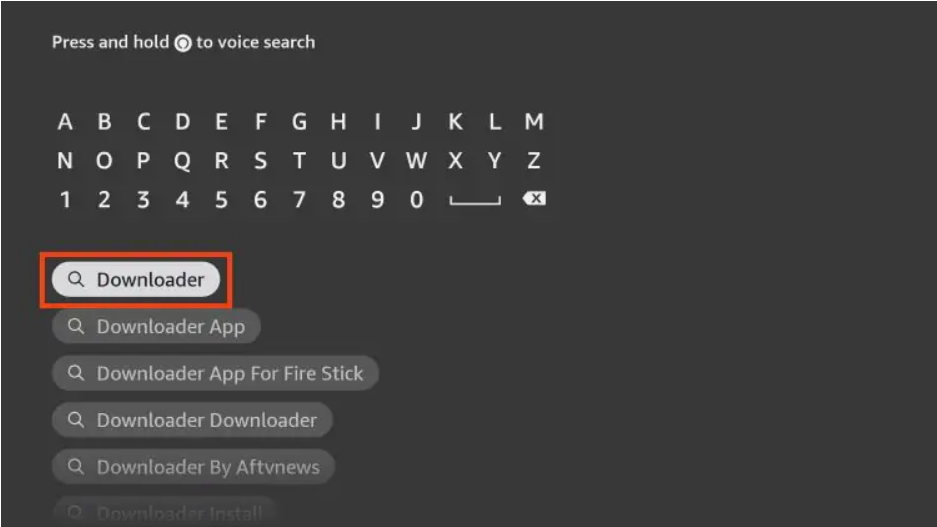
Type: Downloader.
Choose Downloader. Be sure the developer is AFTVnews
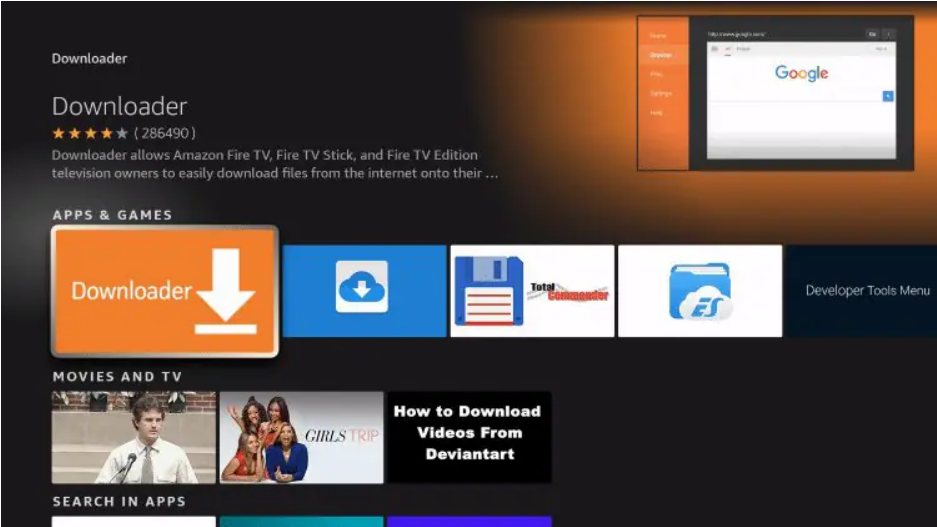
Click Download.
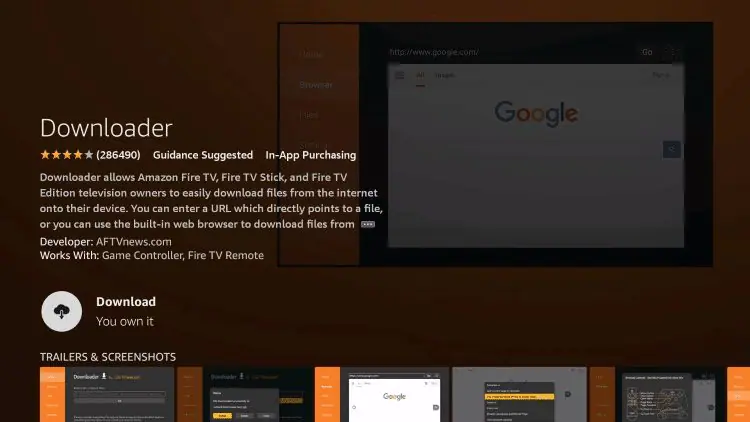
Wait for the app to download.
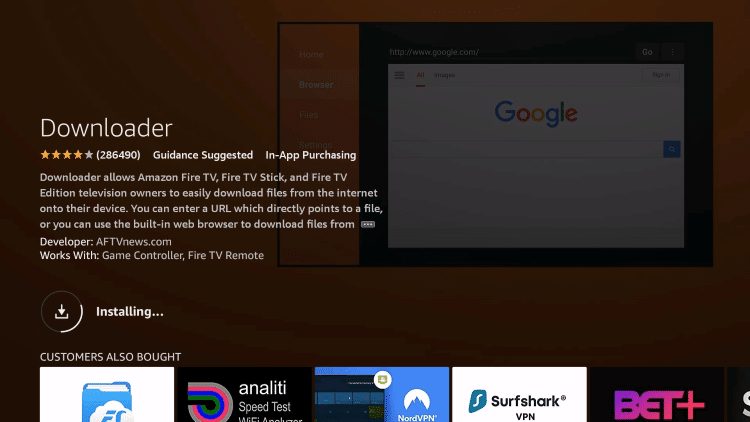
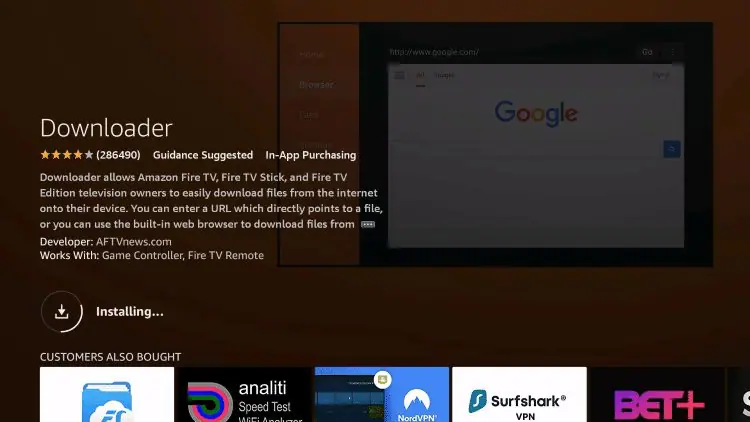
When done Click Open
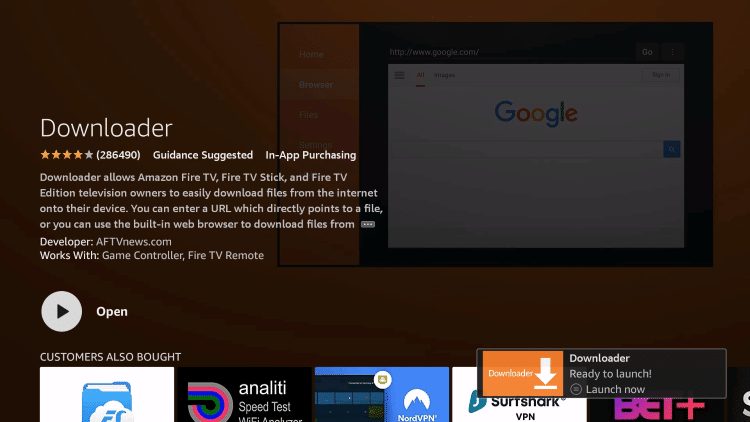
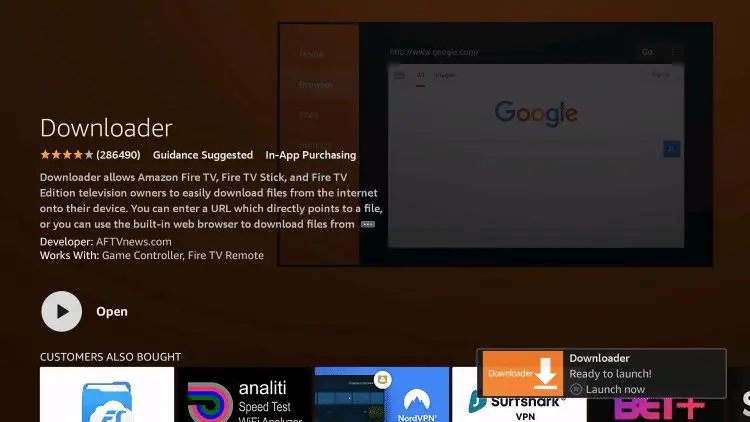
Click Allow
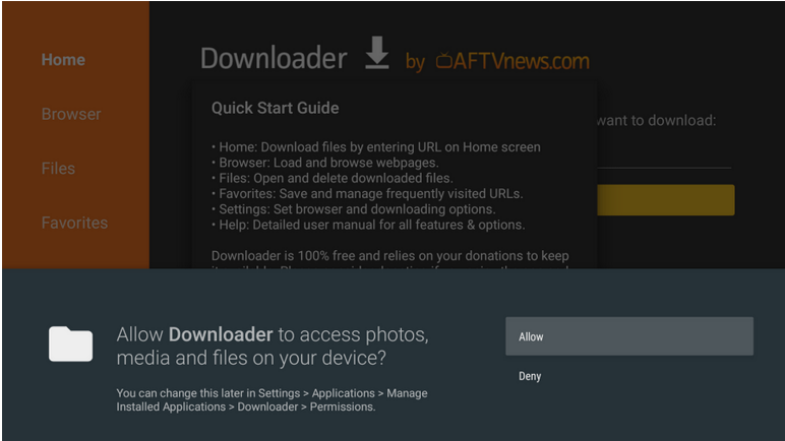
Click OK
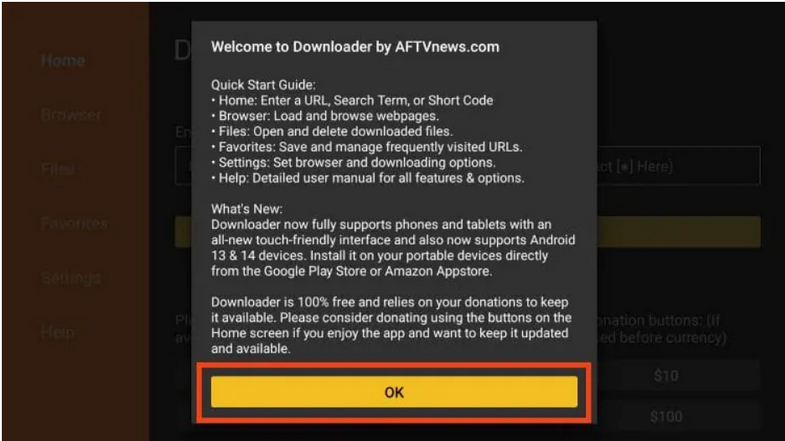
Next you will see this screen.
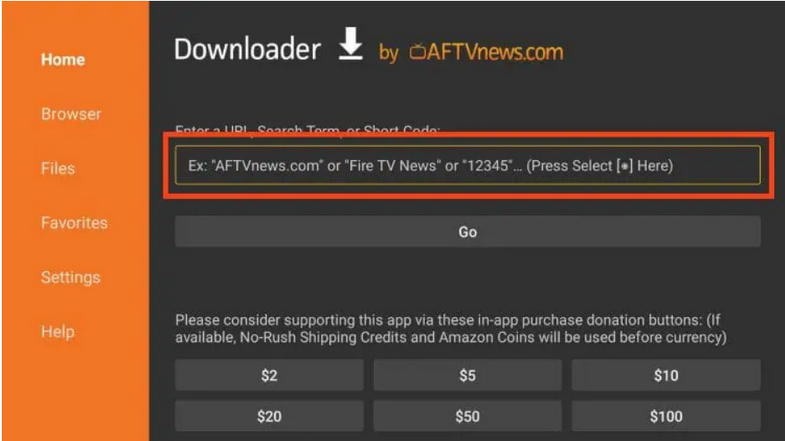
Done.
#2 Install Downloader on Android
Here we are using a NVIDIA Shield, but this process works for any device running the Android TV operating system.
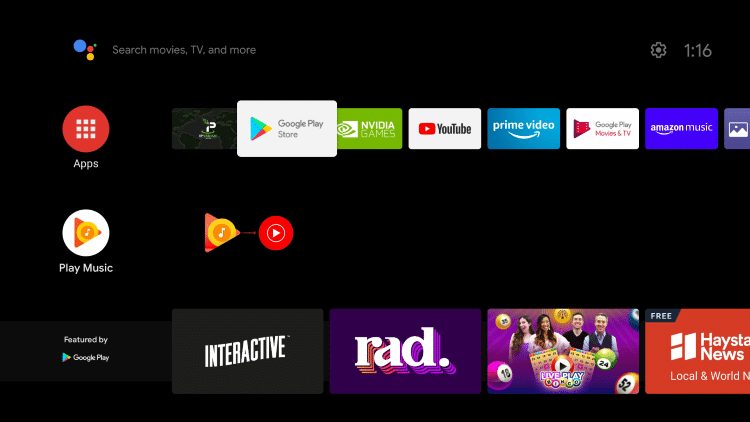
a). Select the Google Play Store from the home screen.

b). Click the search icon.and type in “downloader” and click Search.
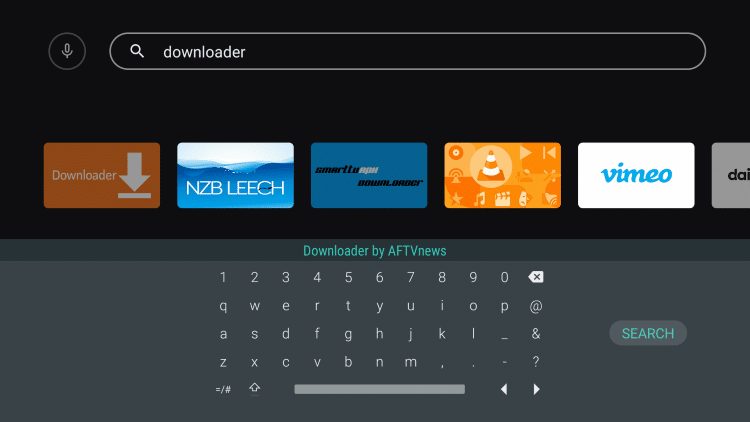

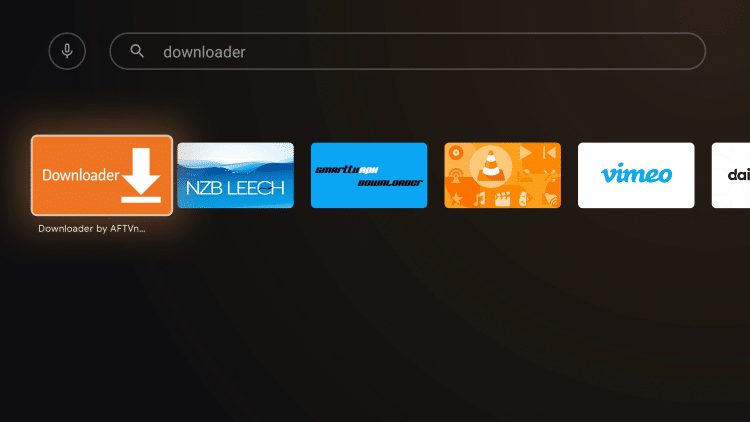
c). Select only the Downloader by AFTVnews.

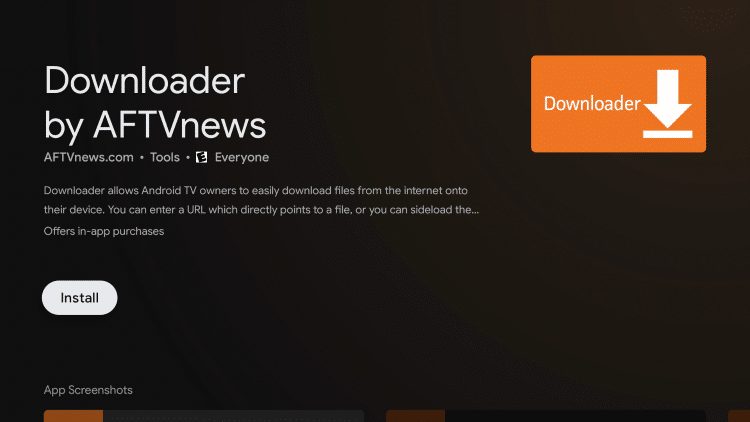
d). Click Install.

e). After the installation is complete.
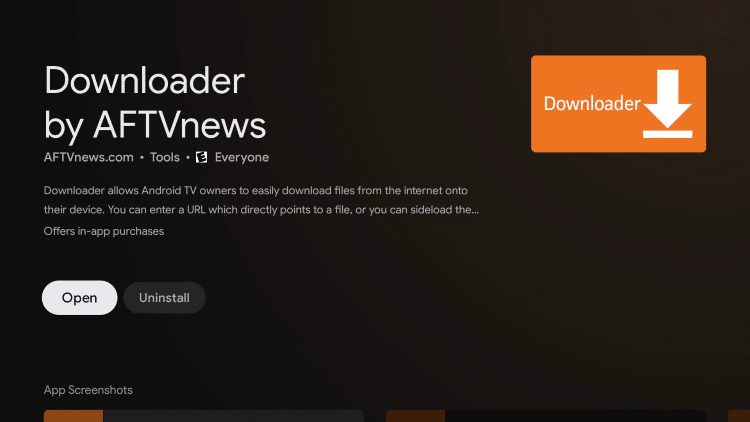

f) Click Open.
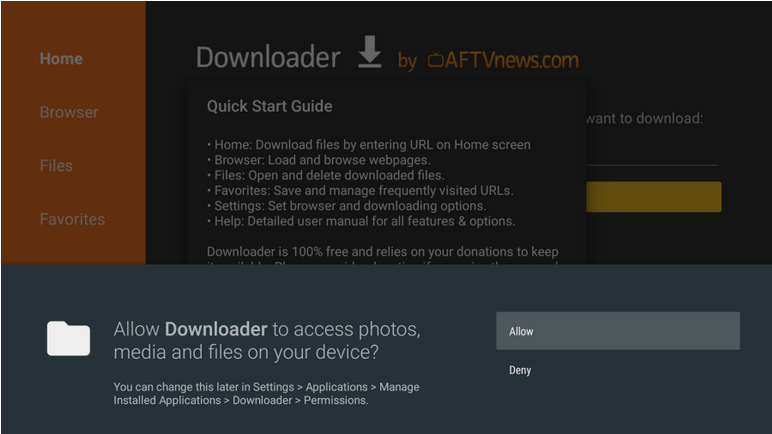
g) Click Allow
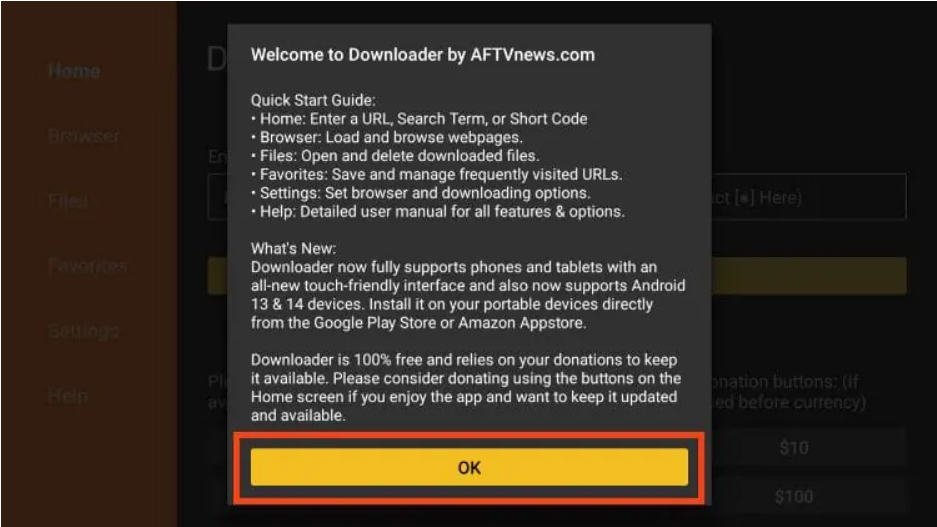
h) Click OK and you will see this screen
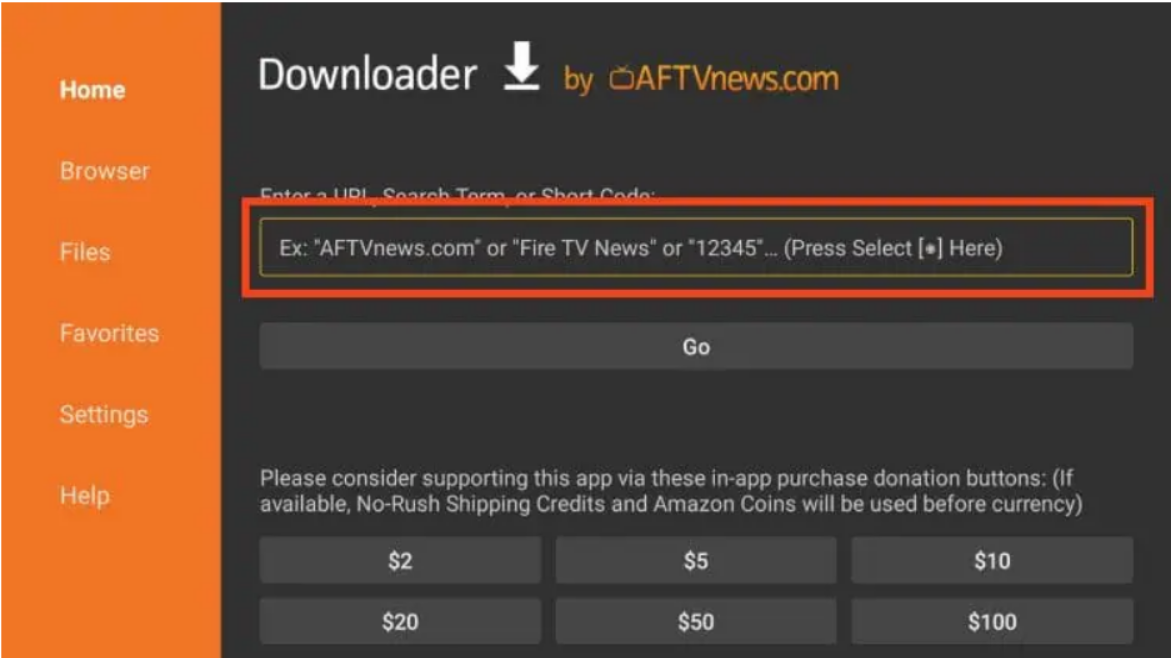
Done
Enable Developer Options on Fire Stick Follow the quick steps below.
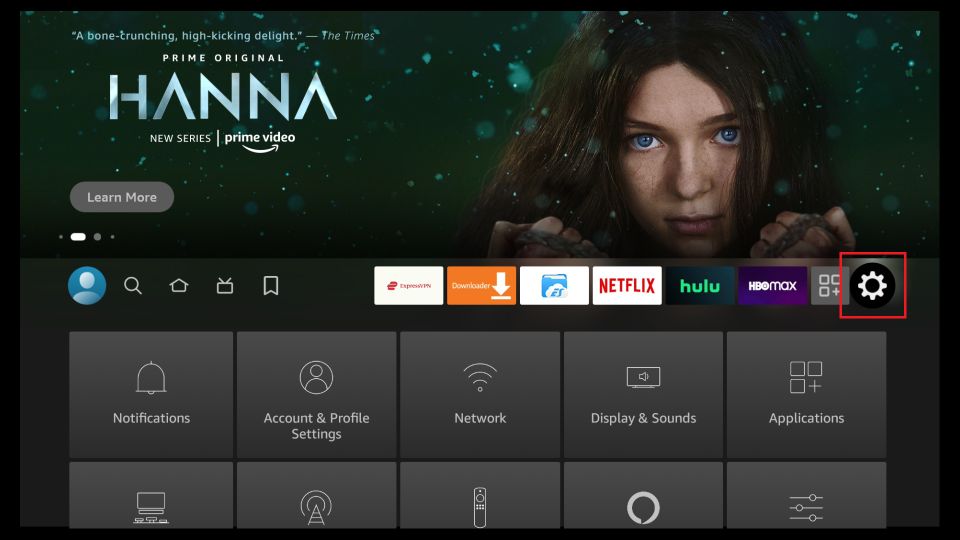
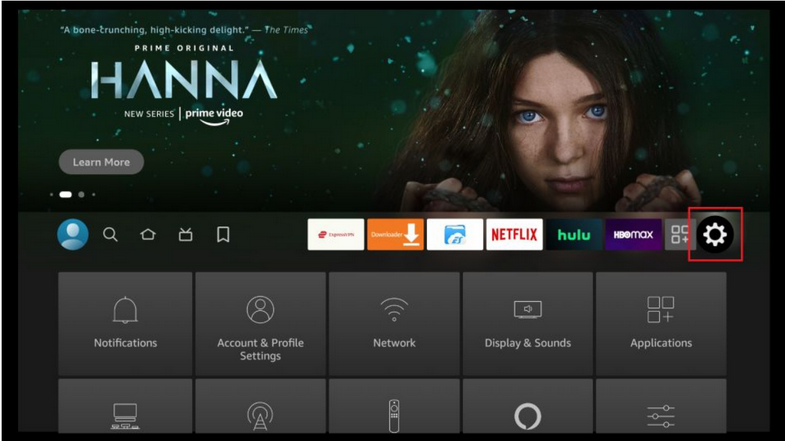
1. Highlight Settings on the FireStick home screen
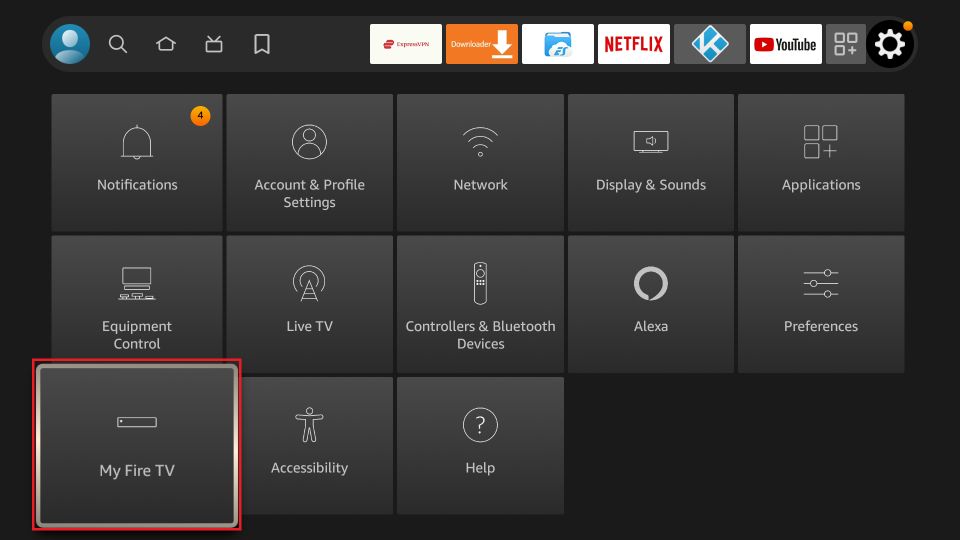
2. Open My Fire TV.
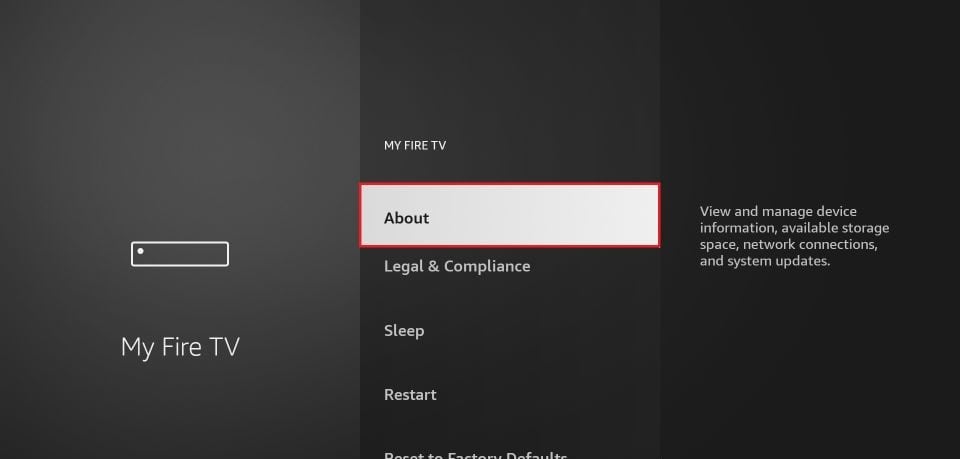
3. Click on About.
4. Select your FireStick on the next window. For example, We are using a FireStick Lite. You may have 4K or 4K Max it’s still the same actions.
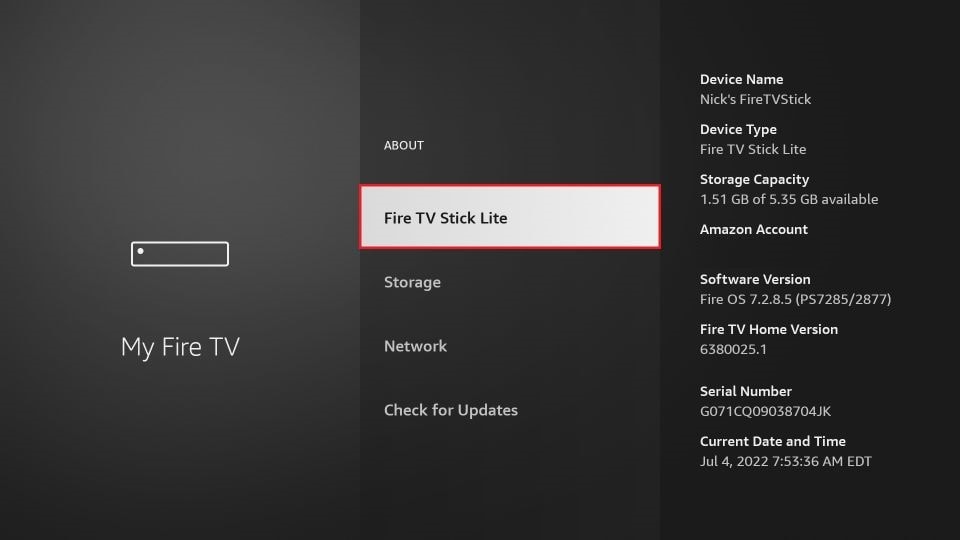
5. Quickly click the FireStick lite 7 times and the following notification appears at the bottom of the screen: ( No need, you are already a developer ).
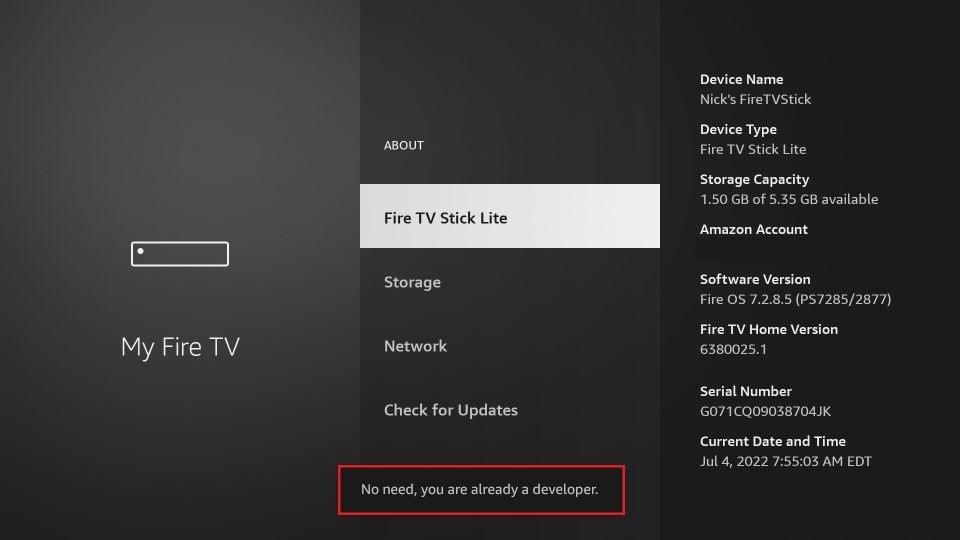
6. The Developer Options have now been reinstated.
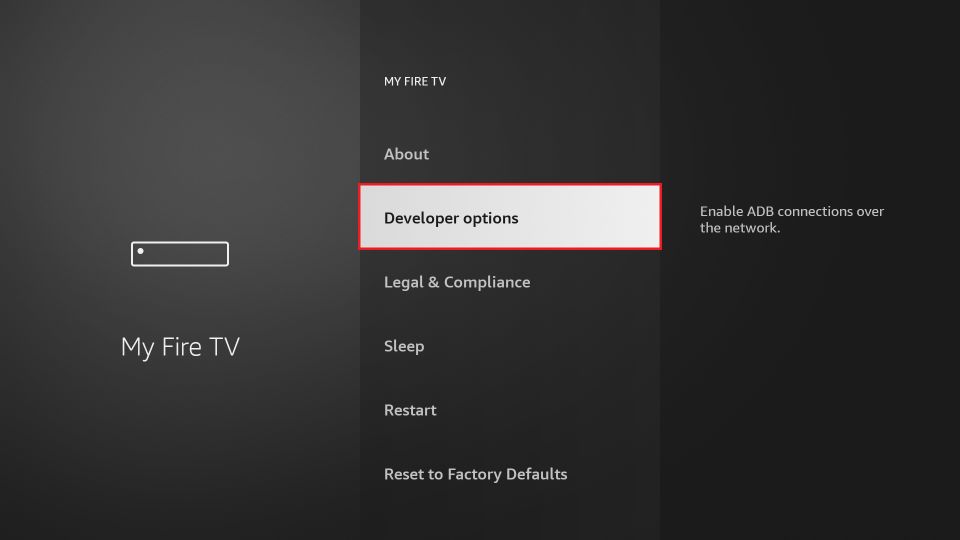
You can now go into Developer Options and enable Apps from Unknown Sources to enable sideloading of APKs on your FireStick device in the next guide below.
TURN ON UNKNOWN SOURCES
Go To App Settings
My Fire TV
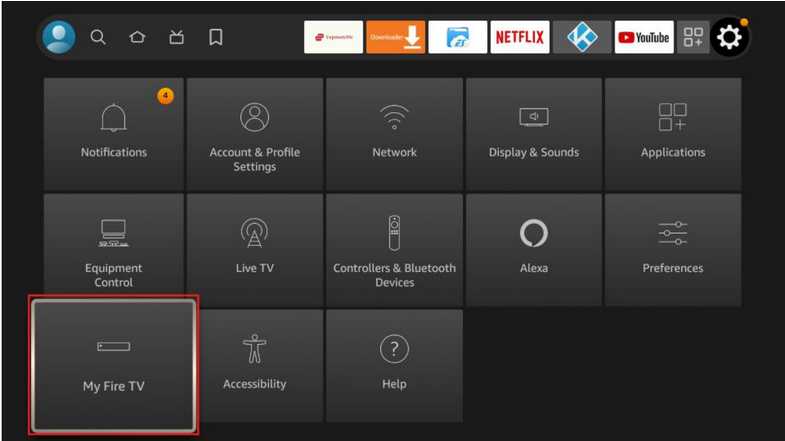
Select Developer Options
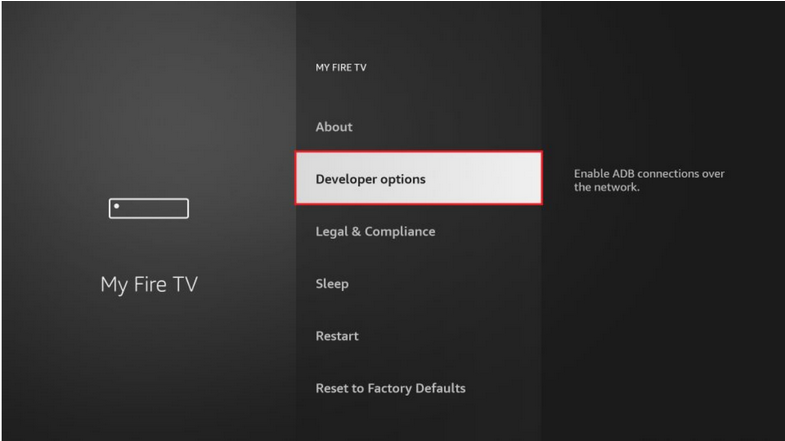
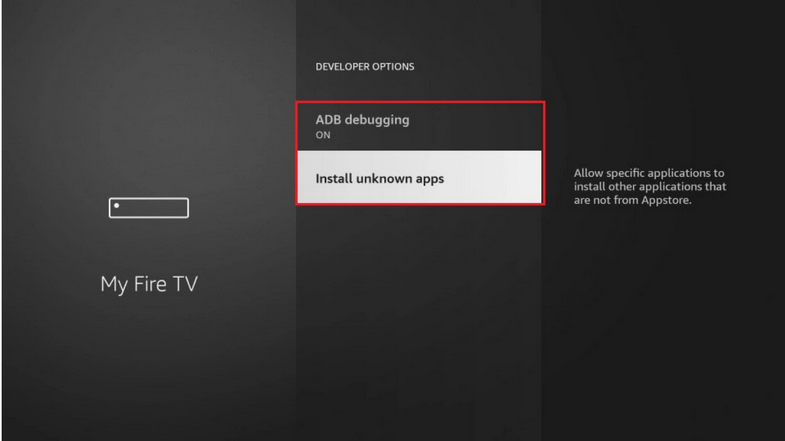
Select install Unknown apps
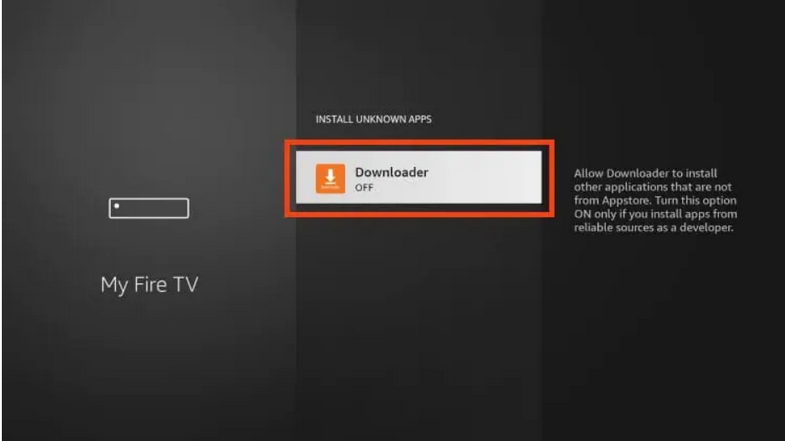
Click Downloader / Unknown sources for Downloader are now off.
Turn On
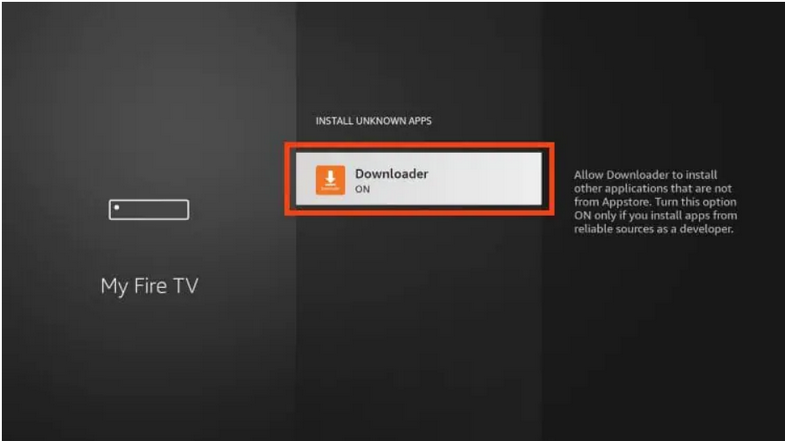
Done:
Congrats! You have now officially “jailbroken” your Fire TV Stick.
Note:
TiviMate app is intended for using on android TV boxes and Fire TV devices with a remote control. It is not optimized for devices with a touch screens. Tivimate is not optimized for phones and tablets.
It is important to note that there are many imposters out there who are using the TiviMate name.
If you come across a website claiming to offer LIVE CHANNELS and using the TiviMate name in there website name make sure to avoid it at all costs. As the app itself does NOT host any content whatsoever, it is only a media player and anyone that offers tivimate with live channel included is a scam. YOU are responsible to provide your own playlist/content from a trusted provider. BTW jadetv.xyz is an awesome trusted provider.
DO NOT FOR ANY REASON INPUT PAYMENT INFORMATION FOR THEIR SERVICES.
Currently the app is only available in the form of a lifetime subscription. The cost is $44.99 cdn at this time. This covers 5 devices which you can manage within your account.
Prior to installation, users are Strongly urged to register for an account via The Official Developers website. TiviMate.com Using your Computer or another secure way to pay.
Only use the guide below to install TiviMate as it originates from the Official source and only pay for it there. https://tivimate.com
NOTE: You Must Have The Downloader App Installed on Your Device First.
1. Launch Downloader and select Enter the URL box on the home screen.
Click OK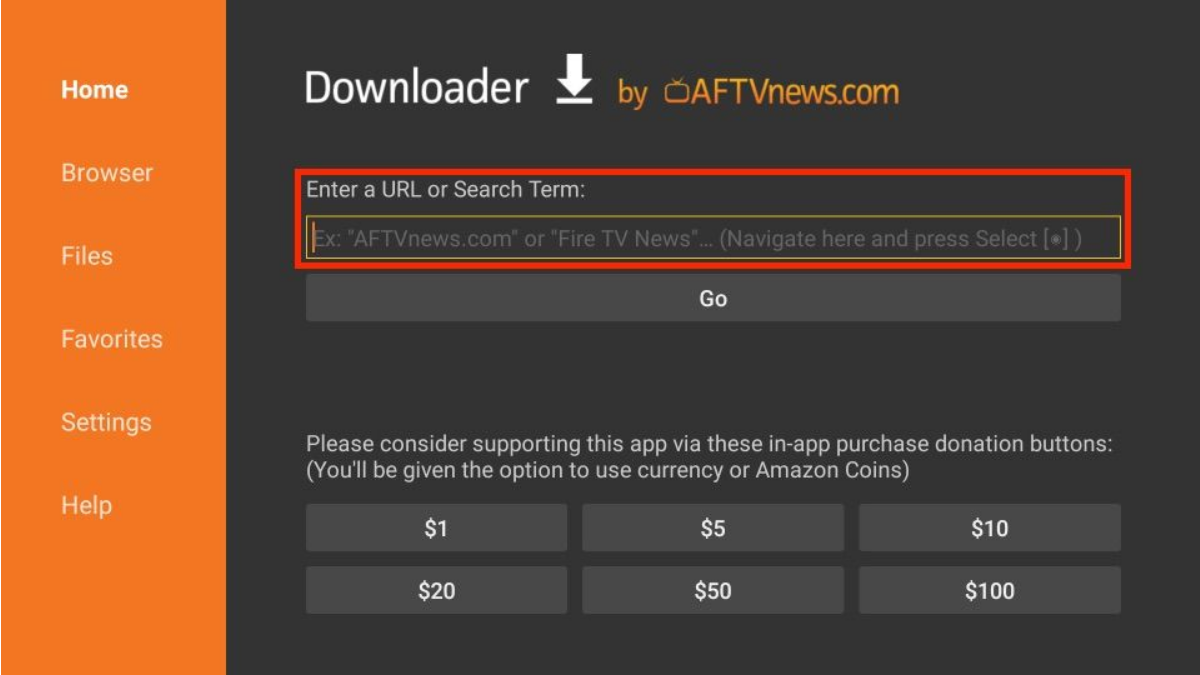
2. A virtual keyboard will open.
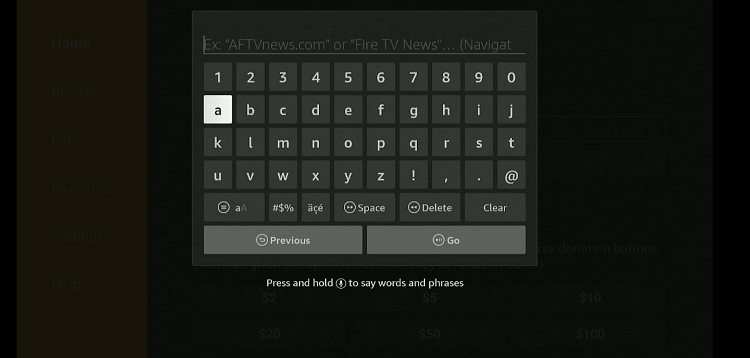
From original developer Type: 272483 Then Click Go
Wait for download to automatically begin.
You may also choose to type in the original Developers website https://tivimate.com and download the APK. from there.
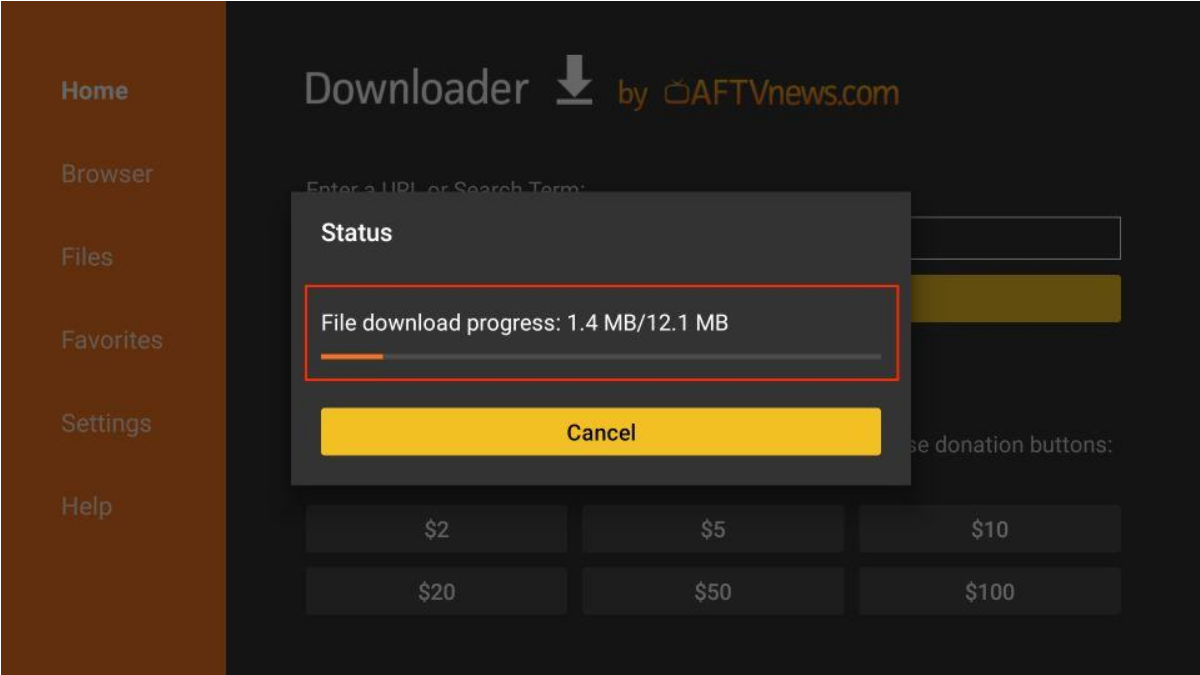
3. Click Install when prompted
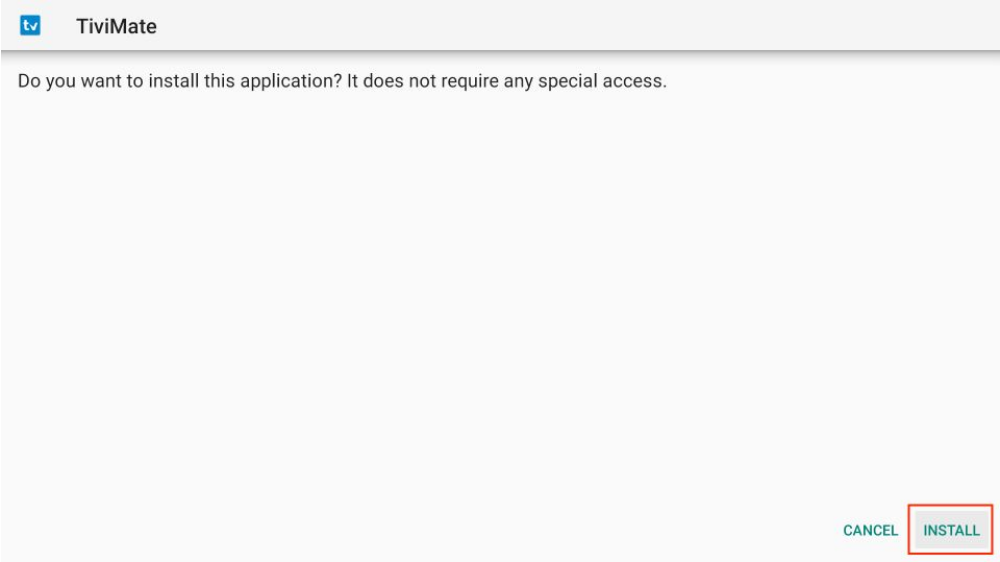
4. Click on DONE when the installation is complete
5. Important:
After installation, click Delete to remove the TiviMate APK leftover junk files from your installation process
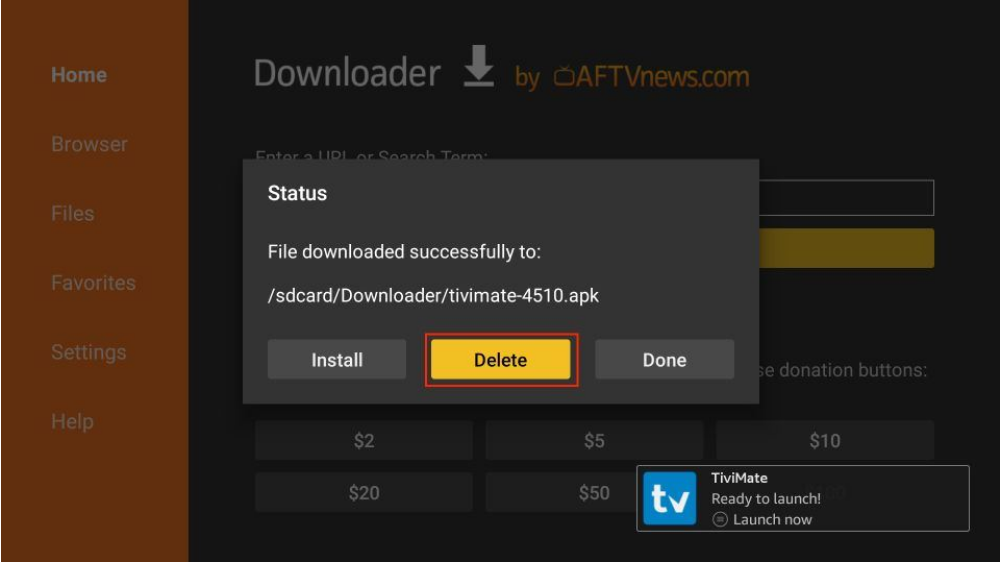
Click Delete again to confirm.
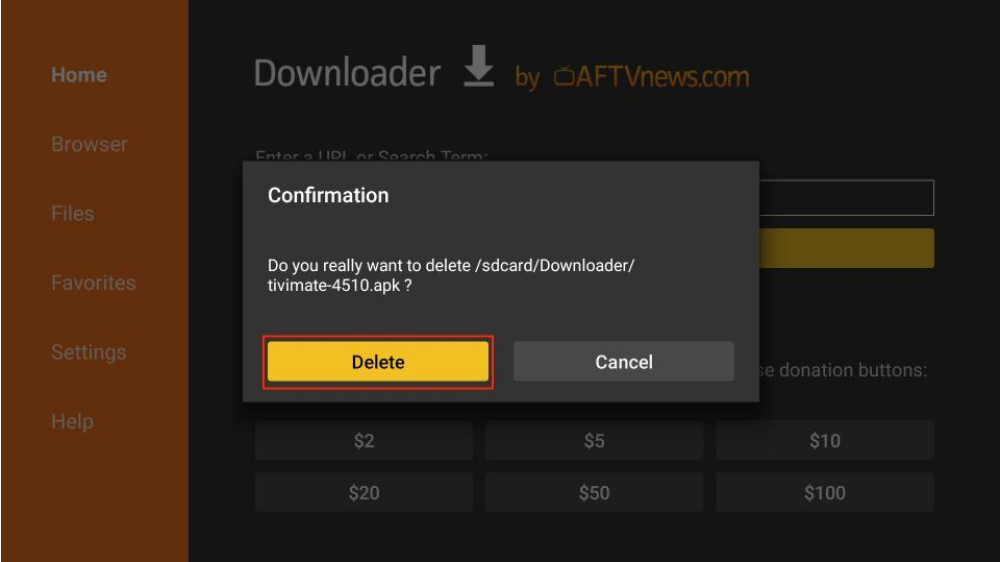
Now Locate the freshly installed Tivimate app on your device in your installed app section and proceed.
Log In to TiviMate Premium
After you have created your Premium account, you can log in to the service within the app previously installed.
1. From the home screen on your device open the Tivimate App.
Click Settings
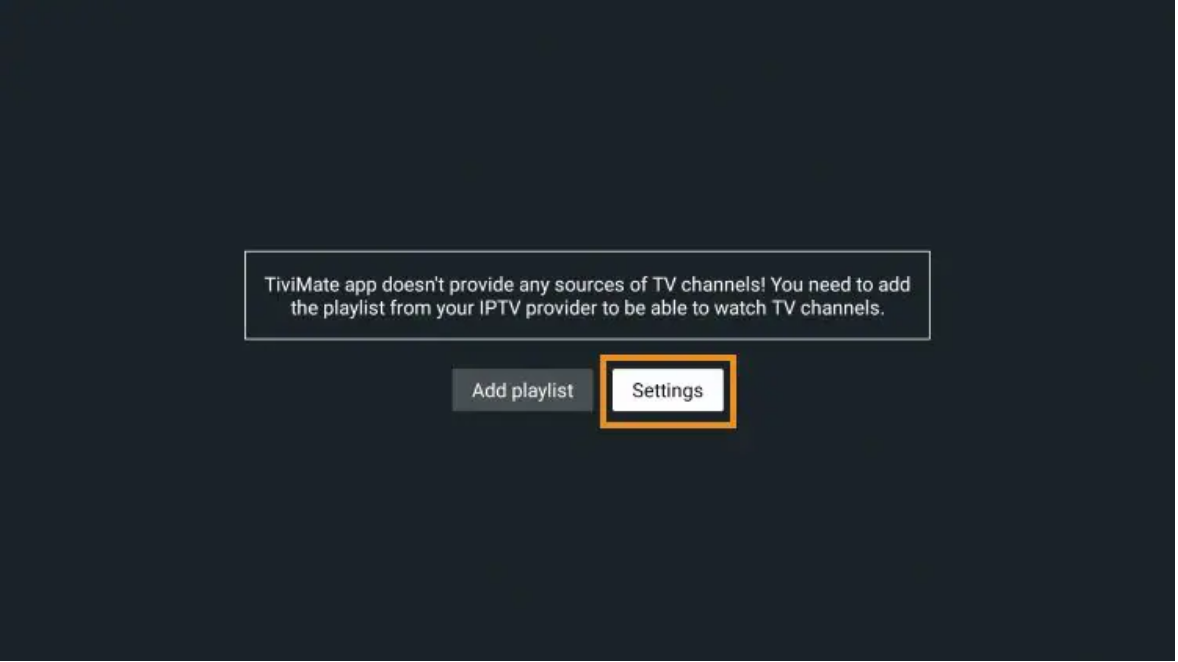
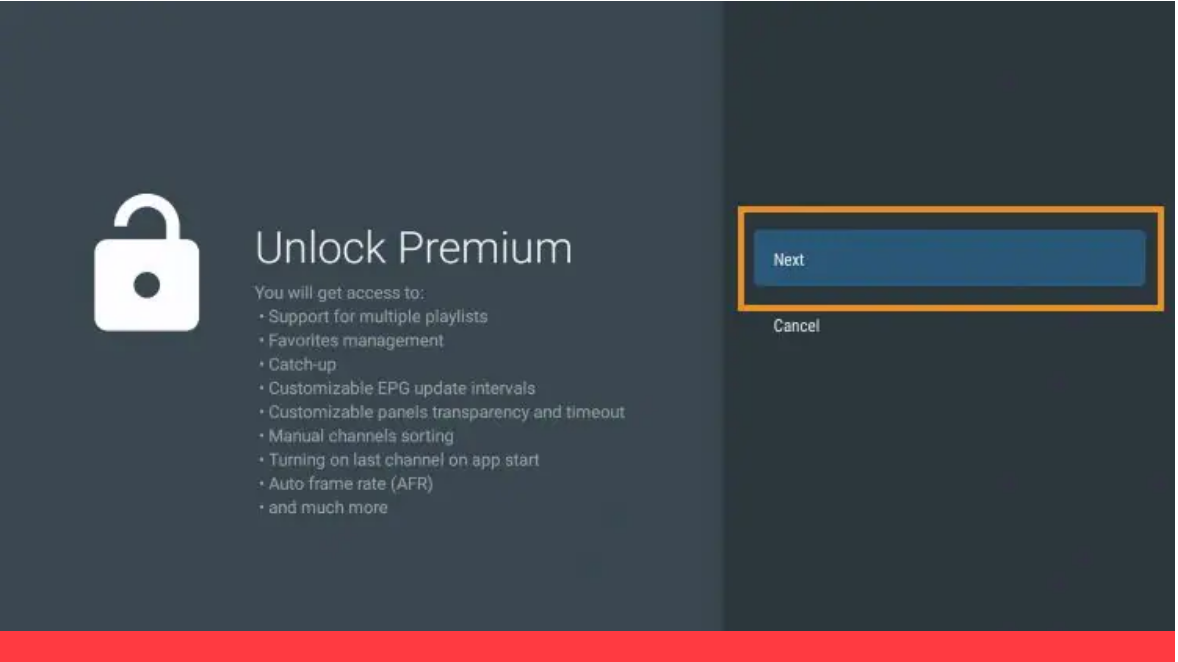
Click on Unlock Premium
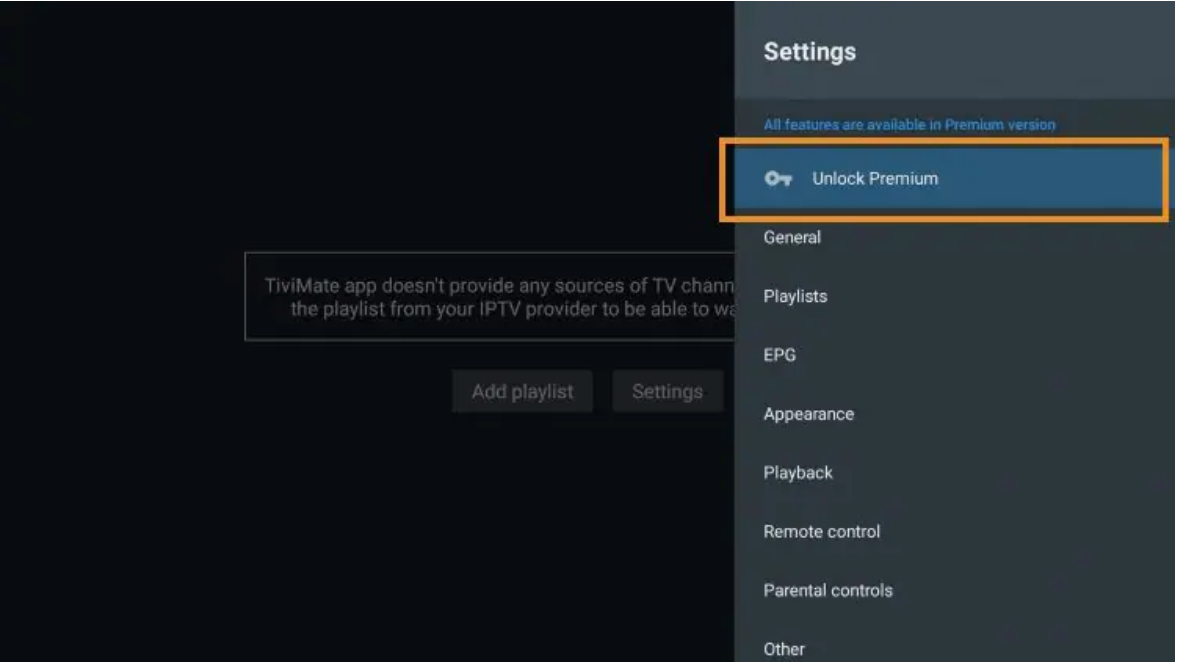
Click Next
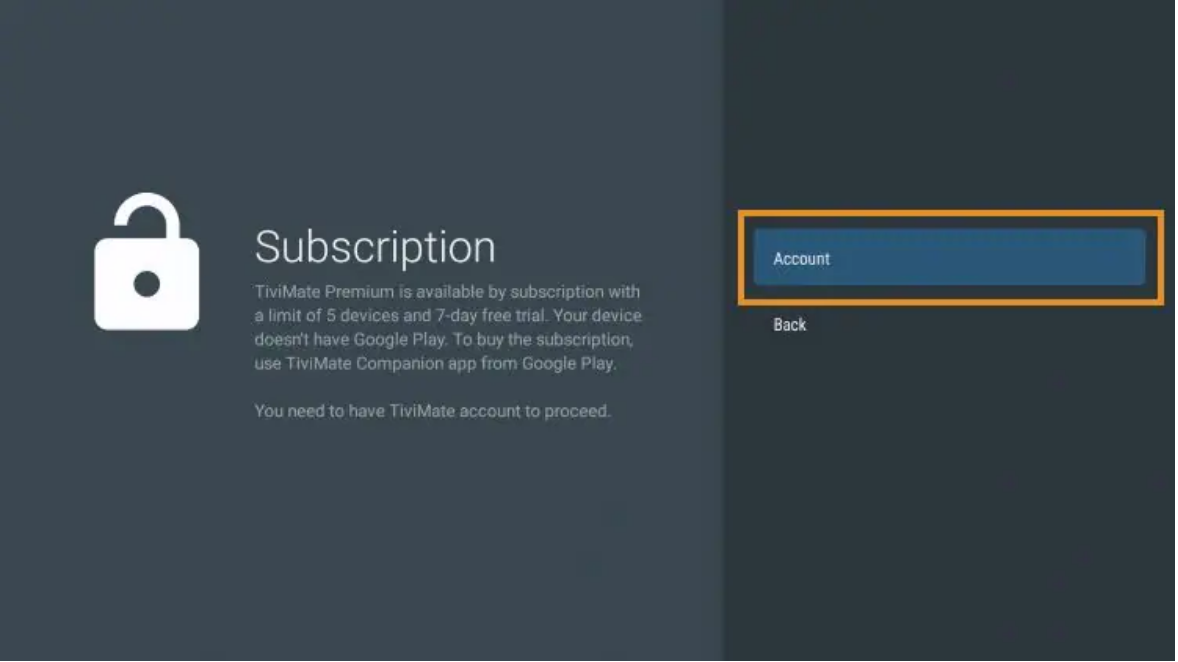
Click Account
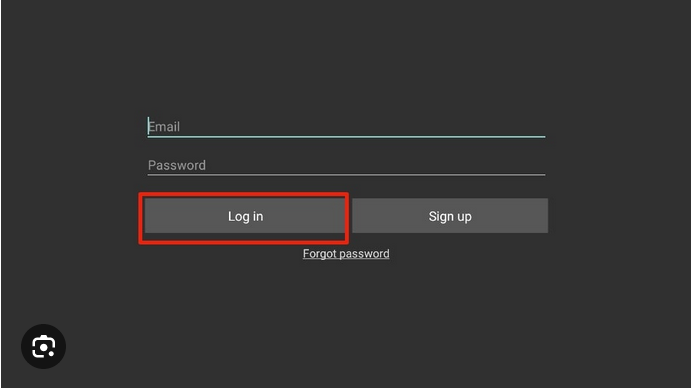
Login in to you TiviMate Account
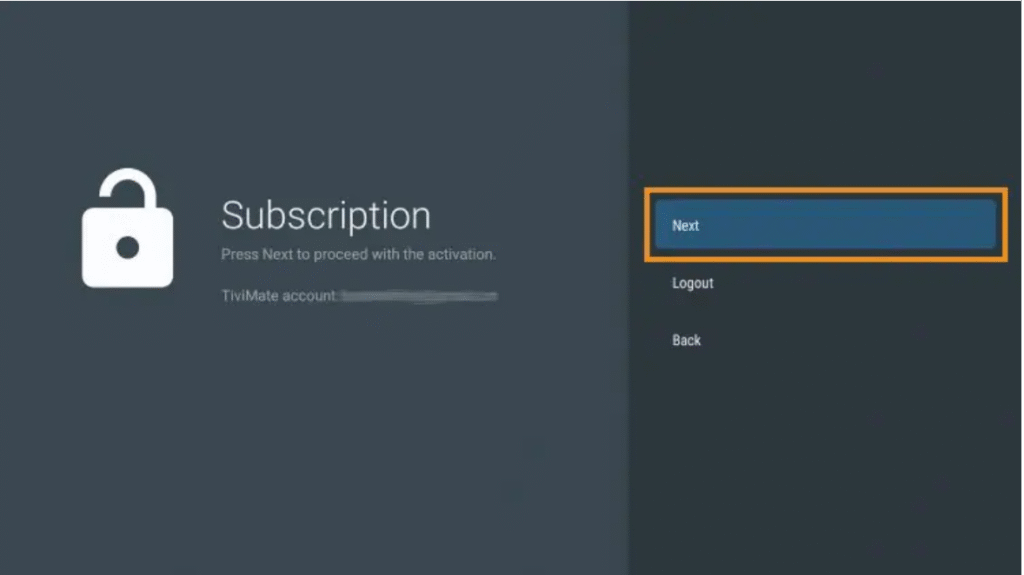
Click Next
Name Your Device:
This is crucial for those that have multiple devices. EXAMPLE: Karen’s Room. or Rec Room. etc. When done
Click Activate.
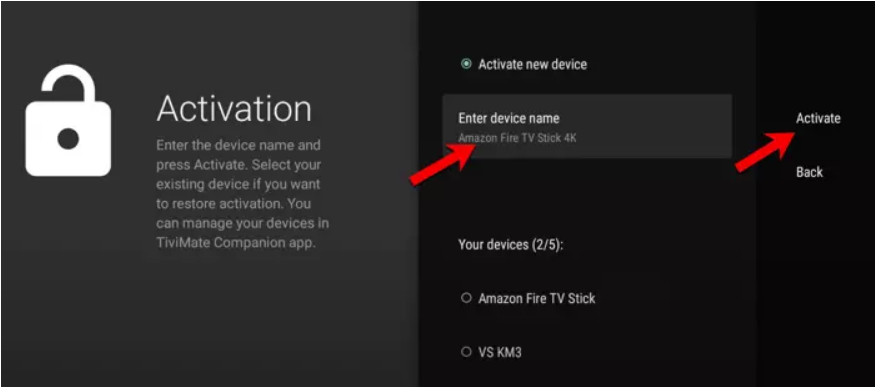
Click OK

Done
Adding your Playlist To TiviMate
#1 Open the TiviMate App
Go to Add Playlist.
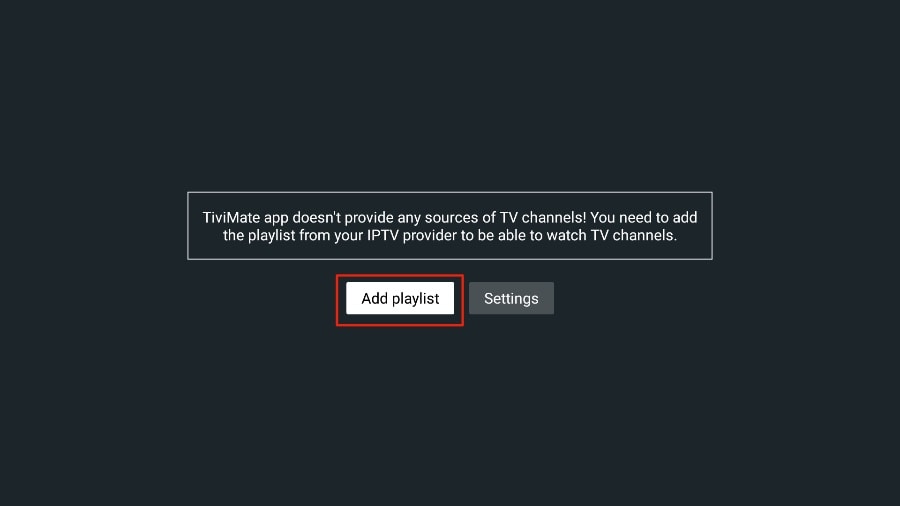
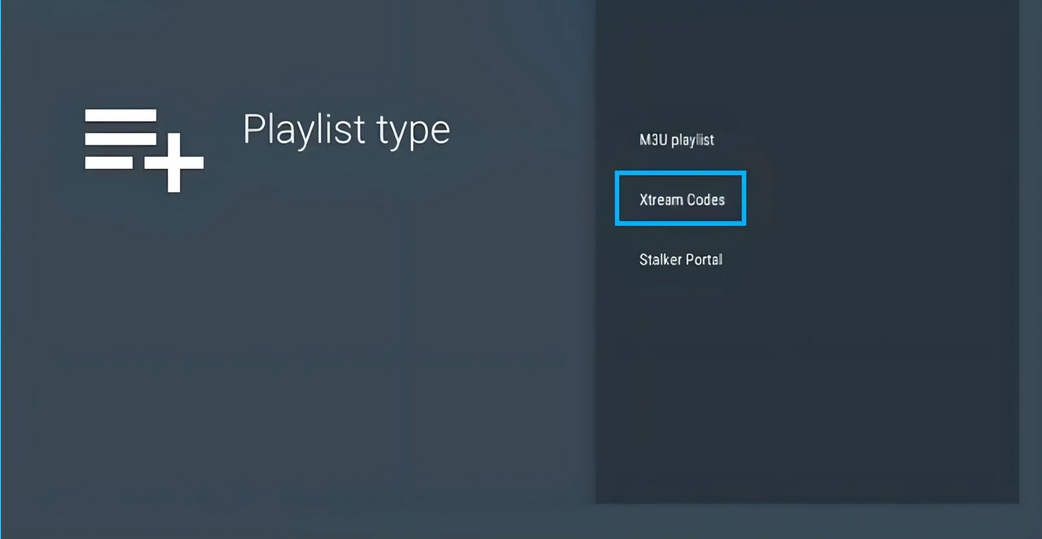
Select Xtreme Codes
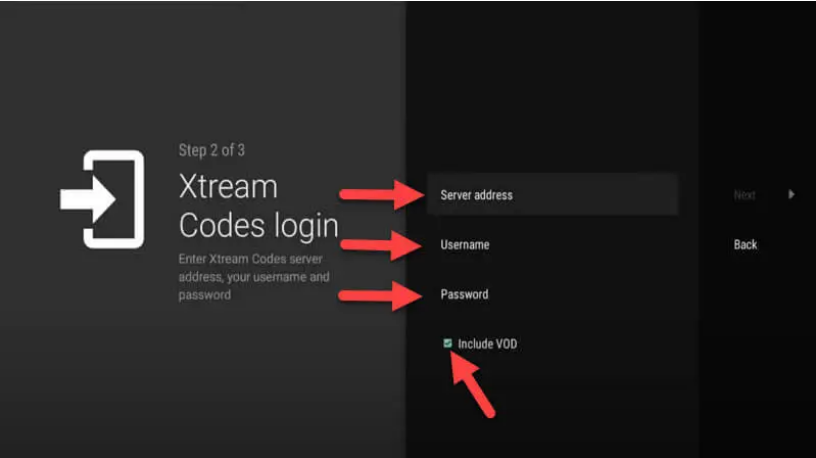
Type in the login credetials that were provided to you from your service provider. URL / Username/ Password . Note: Be sure to include TV Channels (not shown in below image).
Click Next.
Your Playlist is now updating.
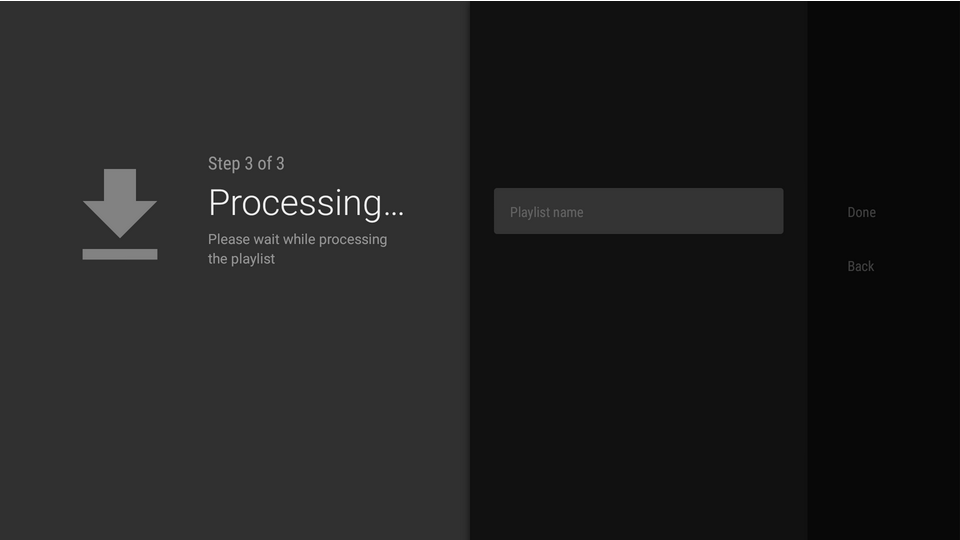
When complete Click Done
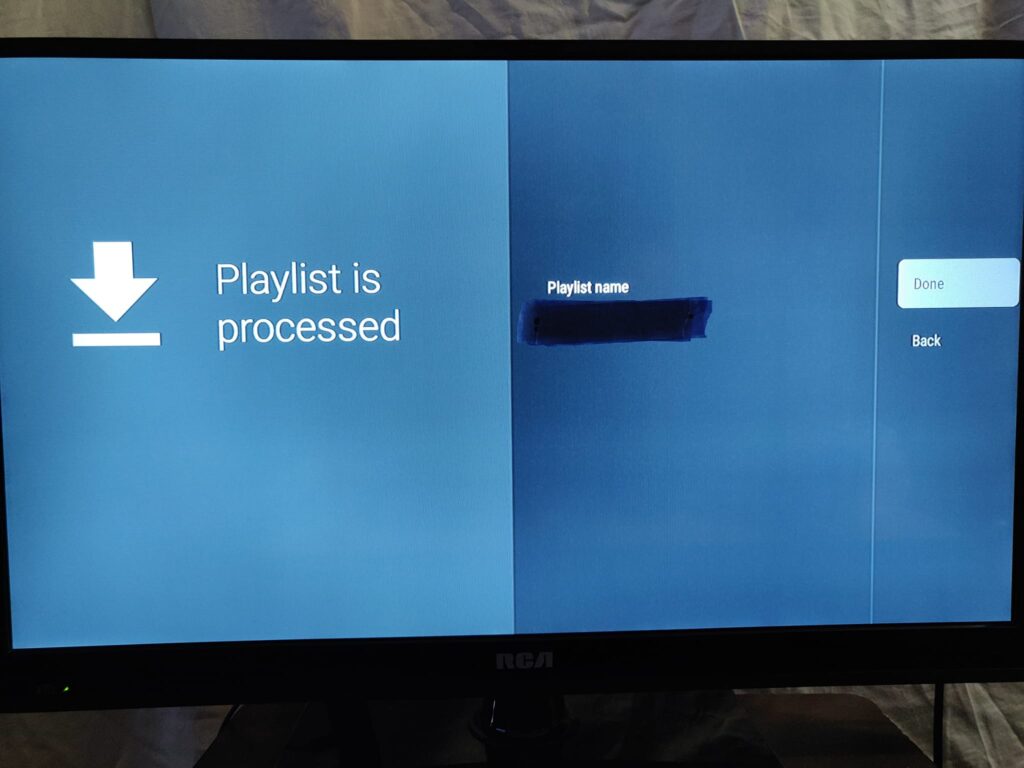
You may need to click done two times to confirm.
Done.
TiviMate Official Website
The developer has created an official website with the ability to login to TiviMate premium account to purchase
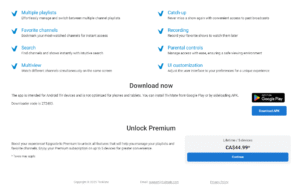
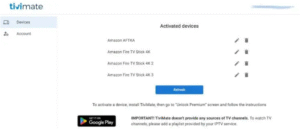
And view all activated devices.
NOTE: You Must Have The Downloader App Installed on Your Device First.
Only use the guide above to install TiviMate as it originates from the Official source and only pay for it there. https://tivimate.com
COMING SOON: A guide to setting up and using the Premium features of this incredible app
NOTE: This app is 100% free but you must do these steps to open up all the premium features of the app.
They do not send you an email just remember the info you used to register for Smarters Pro is the same info to login to Smarters Pro.
UNLOCK IPTVSMARTERS PRO PRO FULL ABILITIES
To unlock SMARTERS full abilities and features You MUST set up Parental Control in order to be able to edit your playlists. Among other things.
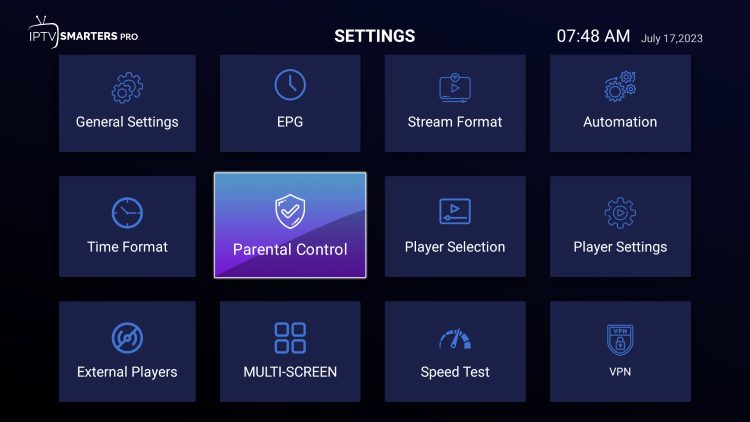

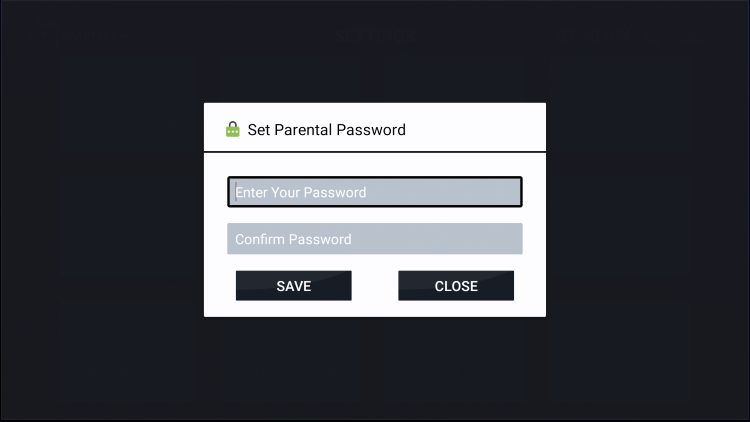
Do this by creating a parental password that will be prompted when accessing various content. It allows you to block and/or remove unwanted category;s , channels, shows, languages etc. If you see the screen below you can click the ok button on your remote and use the arrow buttons to choose your pass code, Then click you revers button once and confirm your pass code. Then click save. You can now proceed to edit your playlist by turning off unwanted things.

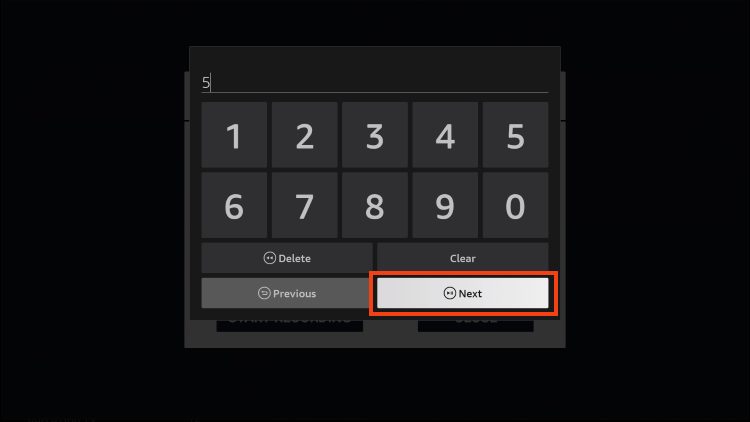
If you see this screen just type in the pass code you like and hit next and confirm your pass code. Done
Go edit your playlist
Note; You must have the Downloater App Installed first.
#1 Click the Downloader App.
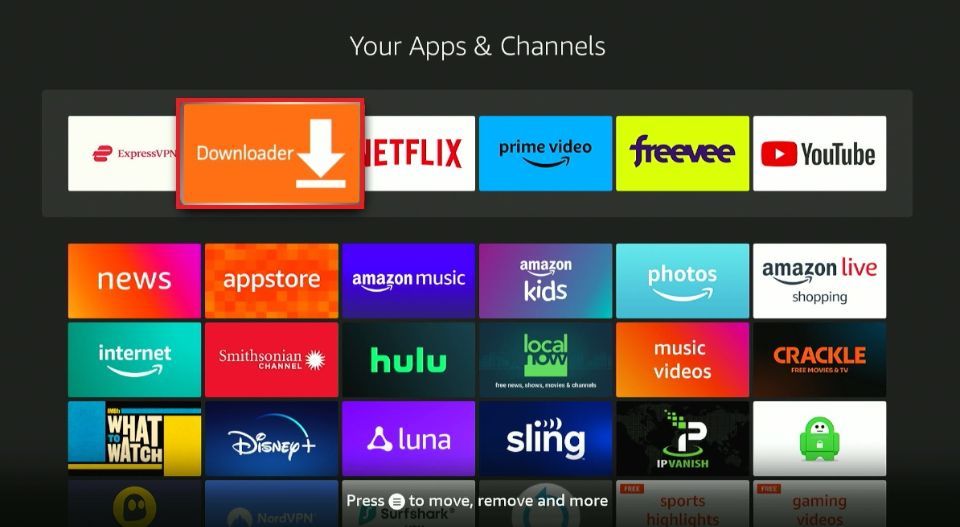
Click on the Search URL box.
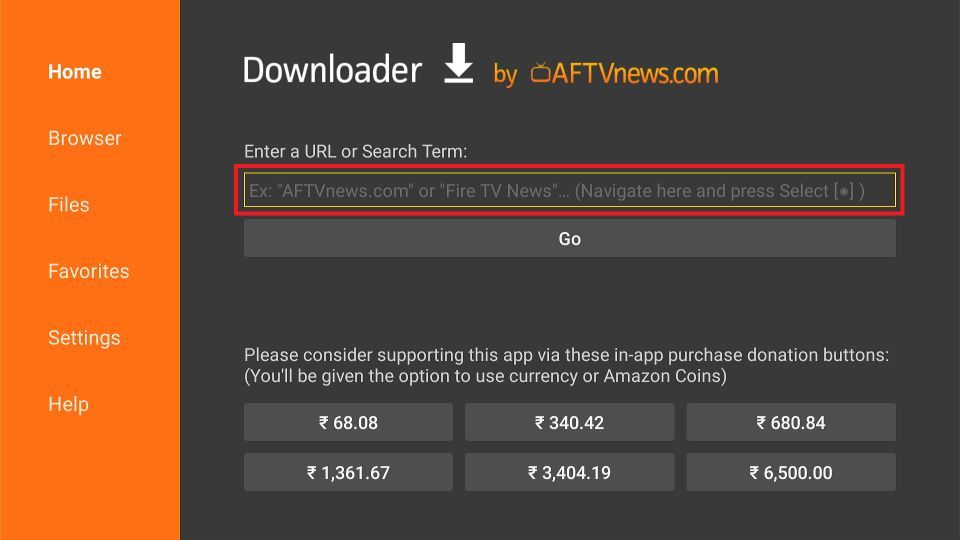
In the DOWNLOADER address bar to get the direct download from the Official App Developers .
Type this short code 6578878
Or
Type: https://www.iptvsmarters.com/iptv-smarters-4.0.6.apk
Click Go
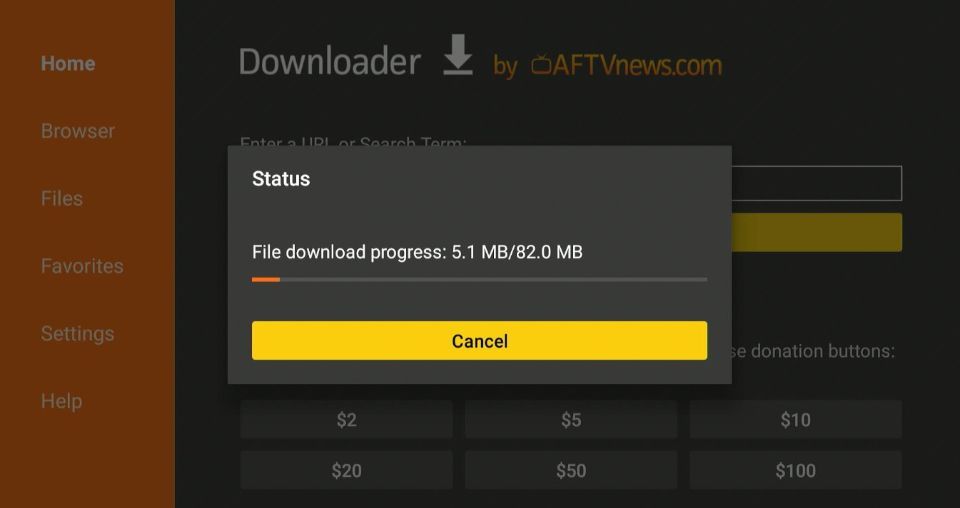
Download will begin
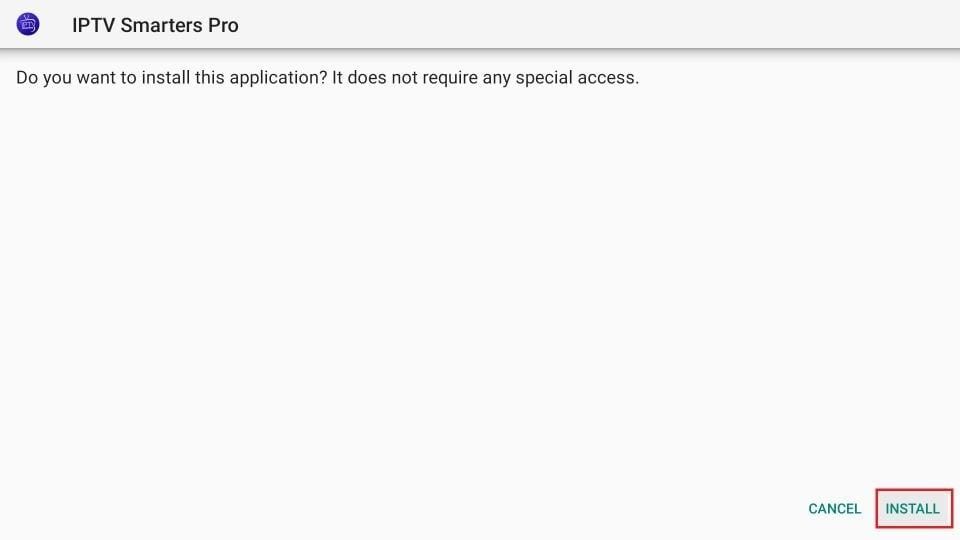
Click Install.
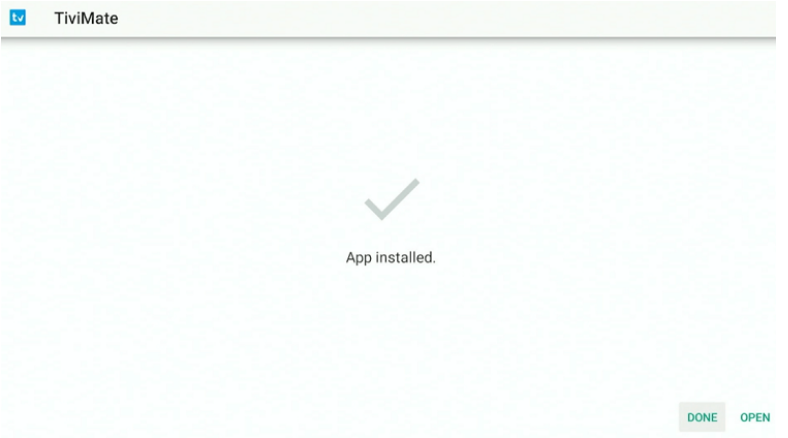
Click Done
Next is IMPORTANT :
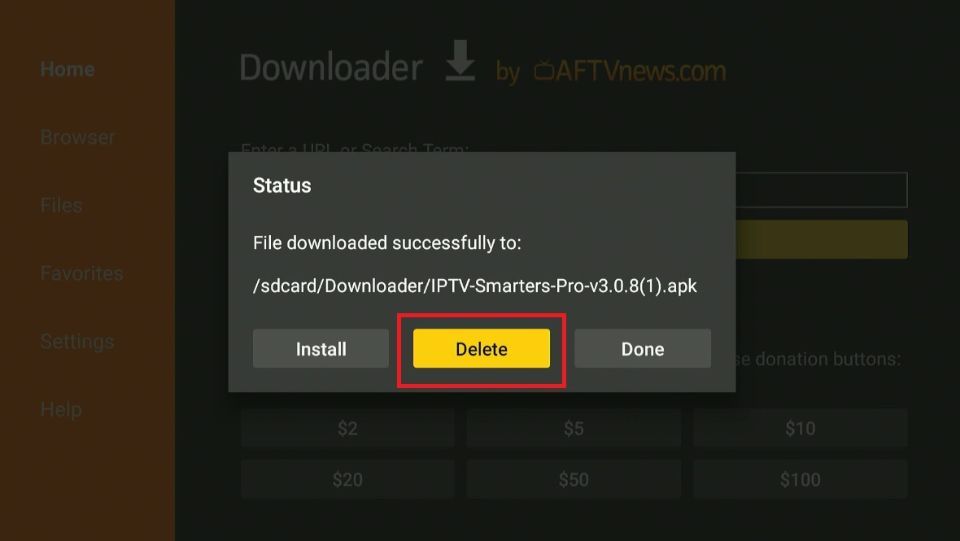
Click Delete on the popup status window to delete the downloaded junk files.
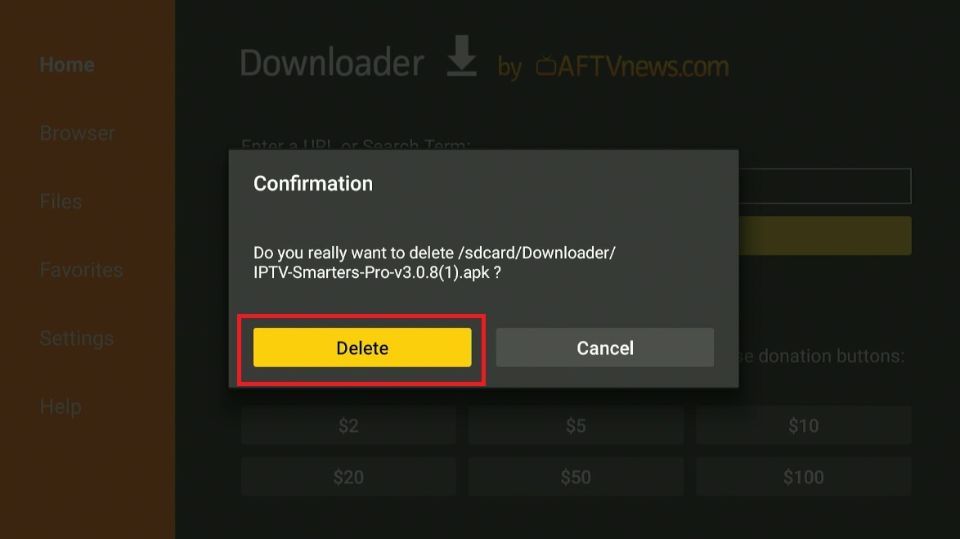
Click Delete again to confirm.
You have now successfully downloaded IPTV Smarters Pro on your FireStick.
How to Setup IPTV Smarters Pro
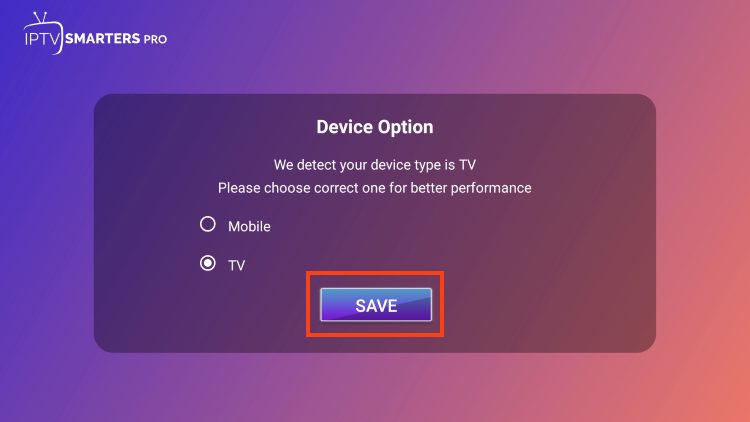
After installing, you can launch the application for use. First, you are prompted to select your layout.
If using a streaming device such as a Firestick or Android TV/Google TV box, select TV and click SAVE.

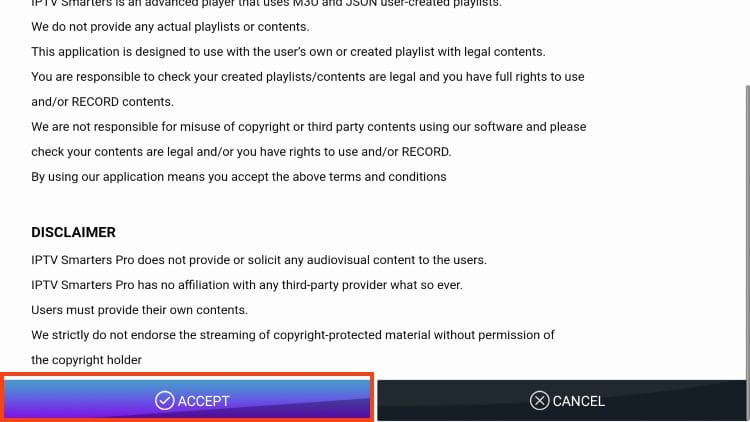
Make sure to read the new announcement from Smarters Pro noting that they do not provide any playlists or content and click Accept.

Choose Login with Xtream Codes

You can choose any name you wish. Example : David’s Room Then input your Username / Password and URL Be sure to type in Exactly as what your service provider sent you via email or other means
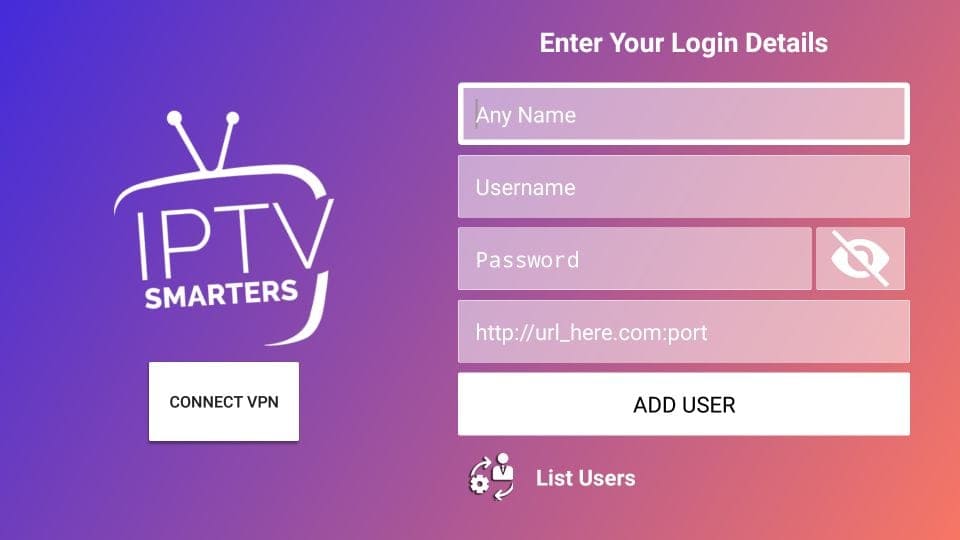
Wait for User added successfully message to appear.
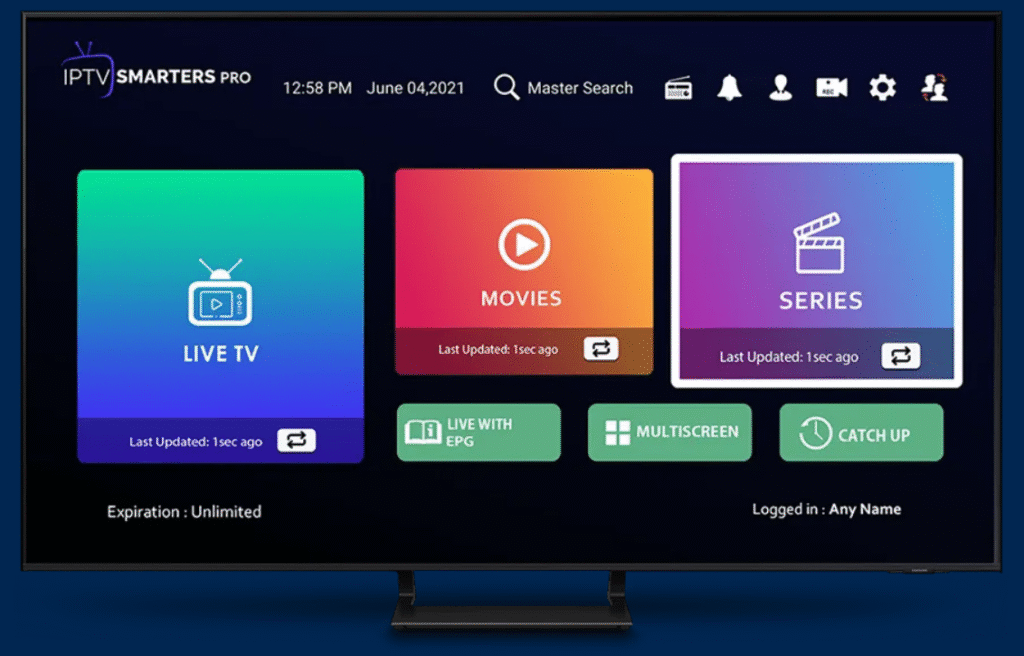 You to access your newly installed SmartersPro app.
On the FireStick home screen, click the 3-Dot (or 3 squares) button on the right
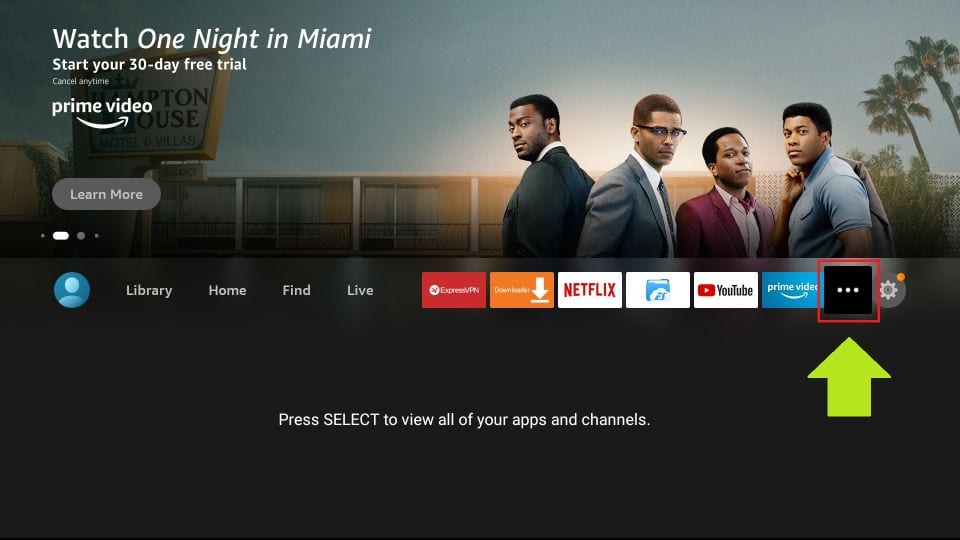
When your list of apps is displayed, scroll down and click IPTV Smarters
If you think you will access IPTV Smarters frequently, move it to the home screen
Press the Menu button on the remote (3-line button). Click Move on the screen in the popup menu on the bottom-right

(Troubleshooting Setup Issues)
If you face any problems getting IPTV Smarters Pro up and running, here is some troubleshooting advice:
Carefully review the installation steps for your device and re-check the details.
Validate account details entered from your IPTV provider.
Change server location in the app to improve connectivity.
Check for updates to both the app and your device software. Try resetting the app to default settings. Reach out to IPTV Smarters Pro for technical assistance.
Currently the best way to install , the IPTV Smarters Pro on an Android Devices, Phones or Tablets is by directly installing the APK File
Visit the official deverlopers VIA your Phone or Tablet Web Browser From the home page, https://www.iptvsmarters.com/
Click Downloads at top of the page. Select / Android App Download Latest Version (v4.0.6) or higher.
Click on the Direct Download APK Files icon. Your download should start automatically.
You may be presented with a screen that says your devices is not allowed to download from unknown sources. If so Click the setting and allow
Once Installed open the App
Select Mobile for Phones and Tablets / Select TV for Android Boxes and Click Save.
Scroll and accept the license Agreement
Select XTREME CODES.
Now enter your playlist details provided to you by your service provider.
Username/Password/and URL is what you were provided.
You can also sideload the app by installing the Downloader app just like if you were installing on a firestick and typing in the address bar 6578878 or type www.iptvsmarters.com
To get the Free Premium version you can watch the guide called Get the 100% FREE Premium Version of the SmartersPro App
How to install SmarterPro on Apple Devices
NOTE: Apple TV is a mini-console multimedia player device with which you can play your audio and video content. It also comes with various paid content such as AppleTV+. But IPTV users would love to install and use IPTV content of the provider of their choice. In this tutorial, we will show how you can add xtreme codes to an Apple TV / iOS device.
Note: We will try to keep this article updated with the best application available for Apple TV.
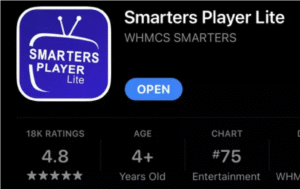
At the moment the best IPTV Application on Apple TV is Smarters Player Lite.
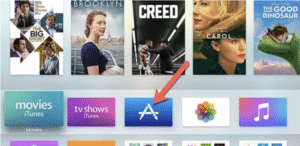
1. Click on AppStore
you can dowload it directly for the link below:
https://apps.apple.com/in/app/smarters-player-lite/id1628995509
BE AWARE. Only use the original developers app provided by WHMCS SMARTERS
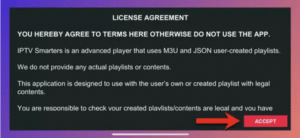
3. Accept the license agreement.
4. The easiest way is to go with Login with extreme code if available on you device. VIA Username / Password / URL
( picture may not be exact but step is the same )
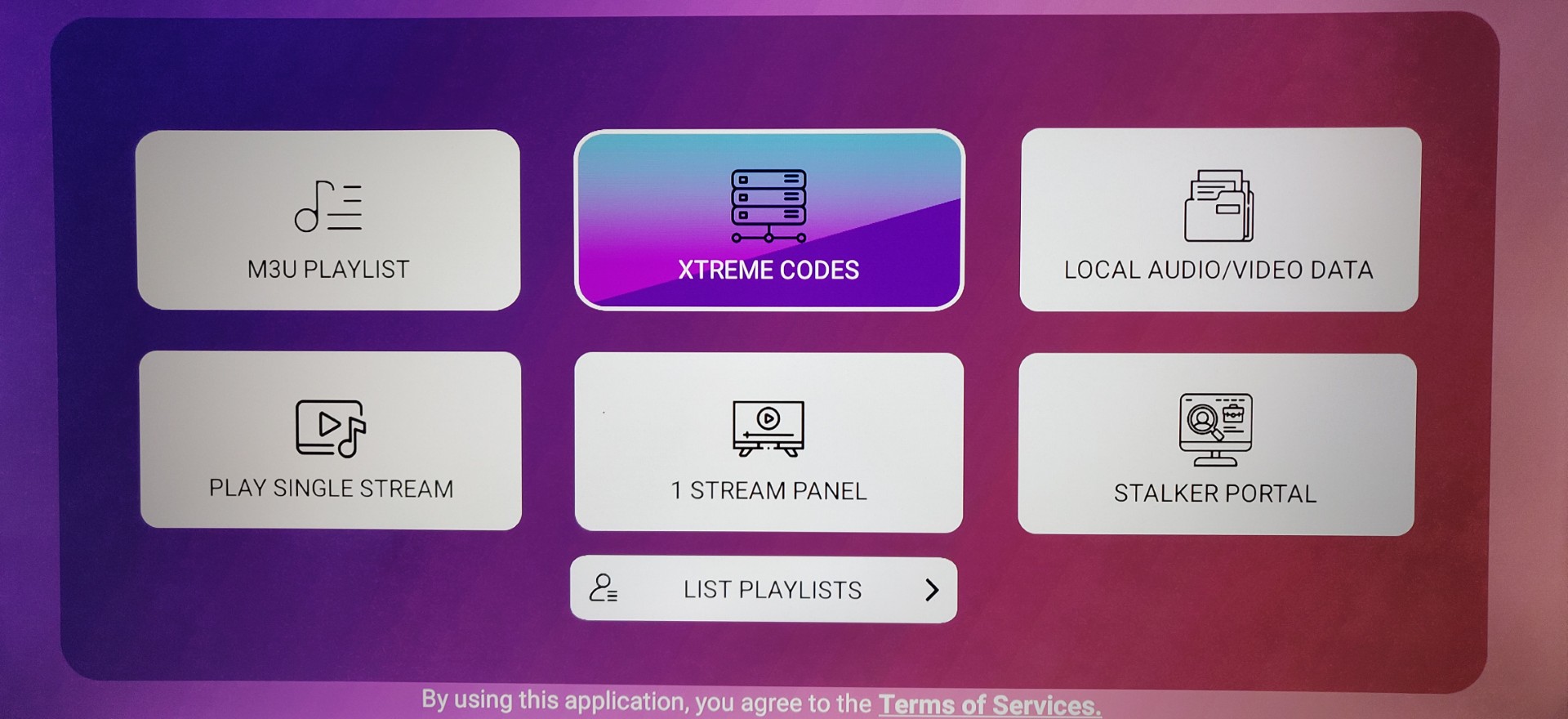
or with XC API picture below
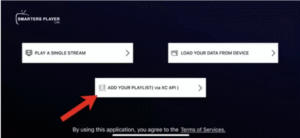
Use the login details that were sent to you from your service provider.
EXAMPLE”
URL http://www.whatever .com
User Name 123456
Password : 123456